One action can identify high-confidence fields throughout a multi-page form.
Free, private PDF form builder
Turn existing formsinto fillable PDFsautomatically.
Open a PDF or modern Word .docx file. Auto-place finds likely labels, answer lines, table cells, dates, and checkboxes. Review the fields, fine-tune them, and export a standard fillable PDF.
No signupFiles stay on your deviceBest in a current desktop browser
Your PDF stays on this device.
- Free
- No account required
- Private
- Documents are processed locally
- Fast
- Auto-place likely fields in one click
Real Create Fillable workflowAuto-place demo
Built for forms people actually use
ApplicationsHR formsInspectionsIncident reportsIntake forms
Try it before using your own file
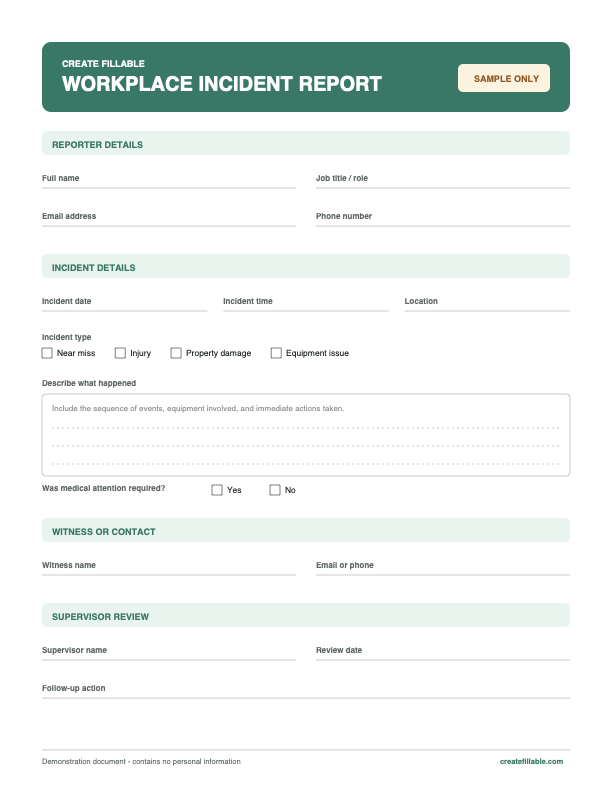
See a flat incident report become a working form.
Open our safe sample in the editor, click Auto-place, and inspect every detected field. It contains no personal data, so you can test the complete workflow first.
The one-click advantage
From printed blanks to fillable fields—automatically.
Click Auto-place once. Create Fillable examines every page for likely form structure, then places editable field boxes over labels, lines, table cells, dates, checkboxes, and printed choices.
BeforeFlat PDF
REQUEST FORM
AfterFillable PDF
REQUEST FORM
Review every orange field box, then move, resize, rename, restyle, or remove it.
Digitally generated PDFs work best. Scanned pages may need OCR before automatic placement.
How to make a PDF fillable
A finished form in three clear steps.
No rebuilding tables. No tracing every blank by hand. Start with the document you already have.
- 01
Open your document
Choose a PDF or modern Word .docx file. Word documents are converted locally with the LibreOffice engine so the original page design is preserved as closely as possible.
- 02
Click Auto-place
The editor detects likely text fields, checkboxes, and choice groups. Adjust field position, size, name, border, background, and text styling as needed.
- 03
Export your fillable PDF
Download a preview-safe PDF with standard interactive form controls that remain ready for people to complete.
More than a field placer
A practical PDF form editor, right in your browser.
✦
Automatic PDF field detection
Find likely inputs across every page and add them as real, editable form controls with a single Auto-place click.
Precise field editing
Drag, resize, nudge, rename, restyle, or remove existing and newly created fields. Add text boxes, checkboxes, and dropdowns manually whenever you need them.
Edit page content
Select detected text or images, cover and replace text, resize images, and add background boxes or borders without rebuilding the entire page.
Word to fillable PDF
Open a .docx file, convert it locally with LibreOffice, then use the same field tools on the converted PDF.
Review without fear
Undo or redo edits, zoom for accuracy, snap to a two-point grid, and inspect field names before exporting.
Private by design
Your document stays on your device.
PDF editing and Word conversion run locally in your browser. Create Fillable does not upload your document contents to its server, and no account is required. Analytics are configured to mask page text and form inputs.
- No document-content uploads
- No signup required
- PDF canvas and form-input content excluded from analytics
Clear expectations
Built for desktop form work and standard PDF readers.
For the most reliable editing experience, use Create Fillable in a current desktop browser. Digitally generated forms work best; image-only scans usually need OCR before automatic field placement.
- Author in
- A current desktop browser
- Open
- PDF and modern Word .docx files
- Best results
- Digitally generated forms with selectable text
- Scanned pages
- Manual fields work; Auto-place usually needs OCR first
- Export
- Standard interactive PDF form fields for common PDF readers
Questions, answered
Create fillable PDFs with confidence.
For the most precise positioning and styling, use Create Fillable in a current desktop browser.
How does automatic field creation work?
After opening a PDF, click Auto-place. Create Fillable looks for labels, blank lines, table cells, dates, checkbox marks, and common printed choices, then places high-confidence form fields for you to review.
Can I convert a Word document to a fillable PDF?
Yes. Open a modern .docx file and the browser-based LibreOffice engine converts it to PDF locally. The PDF then opens in the editor, where you can automatically or manually add fillable fields.
Can I edit existing PDF text and images?
You can select detected text and image regions, replace text, move or resize content, replace images, and add boxes or borders. Content changes are applied as precise page overlays when you export.
Are my documents uploaded or stored online?
No. Document processing happens on your device in the browser. Temporary Word-conversion data is stored locally on the same device and is automatically cleared after its recovery window.
Will Auto-place work on a scanned paper form?
Auto-place needs selectable text or visible digital form structure. Image-only scans usually need OCR before Create Fillable can identify fields automatically, but you can still place fields manually.
Your form is ready to become useful
Turn your next document into a fillable PDF.
Open a PDF or DOCX, click Auto-place, review the fields, and export. No signup required.